
Approving
An approver decides requests from the inbox, or from the file itself.
Foldr Cloud now. Appliances from 11.3 for the panels, sorting, the Decision card in the viewer, and Pause.
The inbox
Section titled “The inbox”In Shared with me, the Reviews & approvals tab holds the inbox. A badge counts the requests waiting. The tab shows for users who hold Review approvals, and for any user a request is routed to. Approvals lists requests. Classifications lists Governance label suggestions, which this section does not cover.
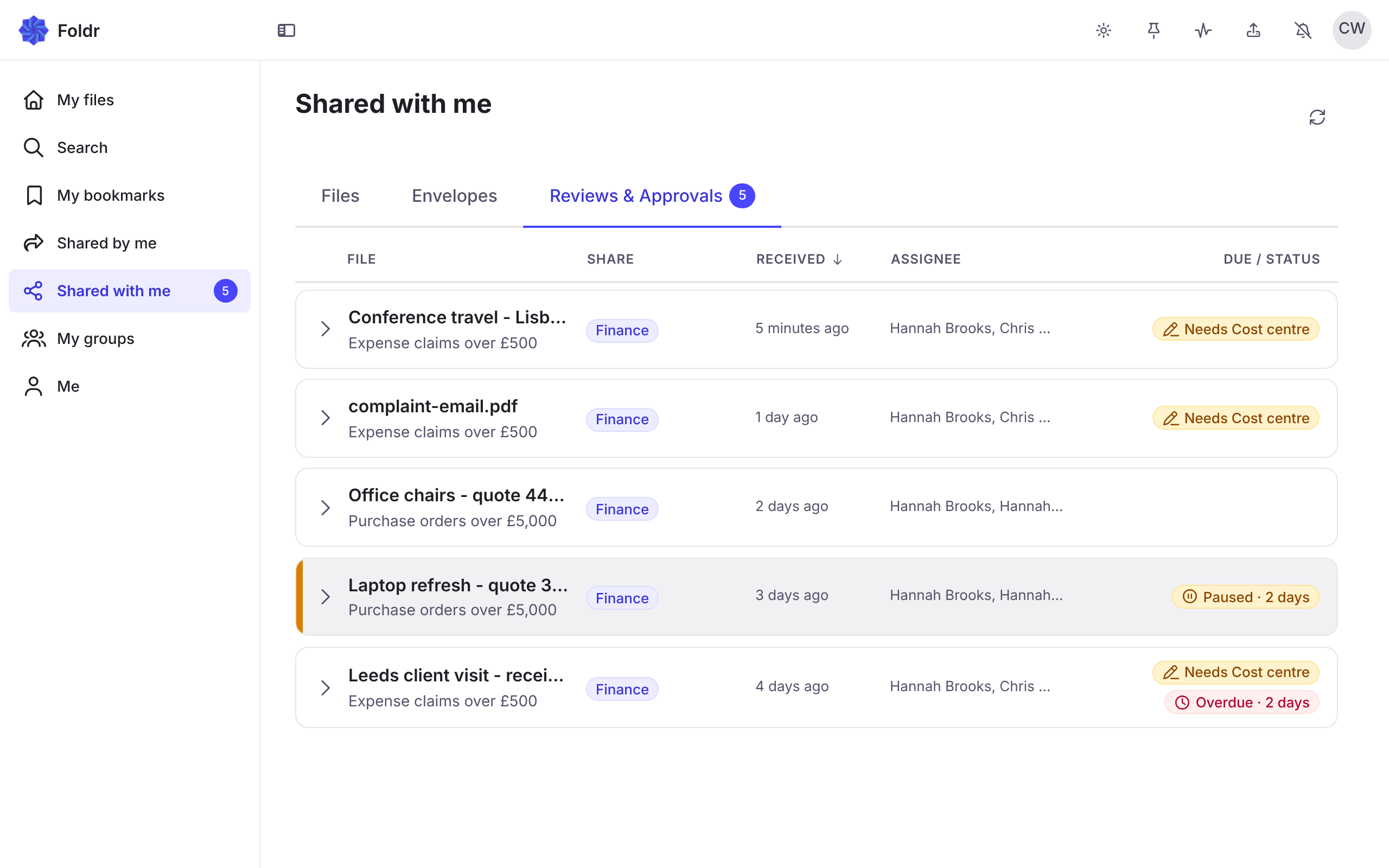
Each request is one row: the file, the ask, the share, when it was Received, the assignee, and chips.
| Chip | Means |
|---|---|
| Overdue | The request has passed its due time. After a day it adds the days, for example “Overdue · 2 days”. |
| Needs | The approver must fill in these fields. It lists them, for example “Needs Budget code”. |
| Paused | An approver paused the request. It adds how long, for example “Paused · 3 days”. |
| Escalated | The request was escalated, by hand or at its deadline. |
An empty inbox says Nothing is waiting on you right now.
Sorting and filtering
Section titled “Sorting and filtering”The column headers File, Share, Received and Due / status sort the list. Select the same header again to reverse it. On a narrow screen, Sort by and Reverse the order do the same. Received is the default, newest first. A share filter, with All shares and Clear, narrows the list to one share. The sort and filter stay in the address, so a link keeps them.
The inbox loads a page at a time. Show more loads the next page. A request someone else decides while you read is removed on the next refresh.
Deciding from the list
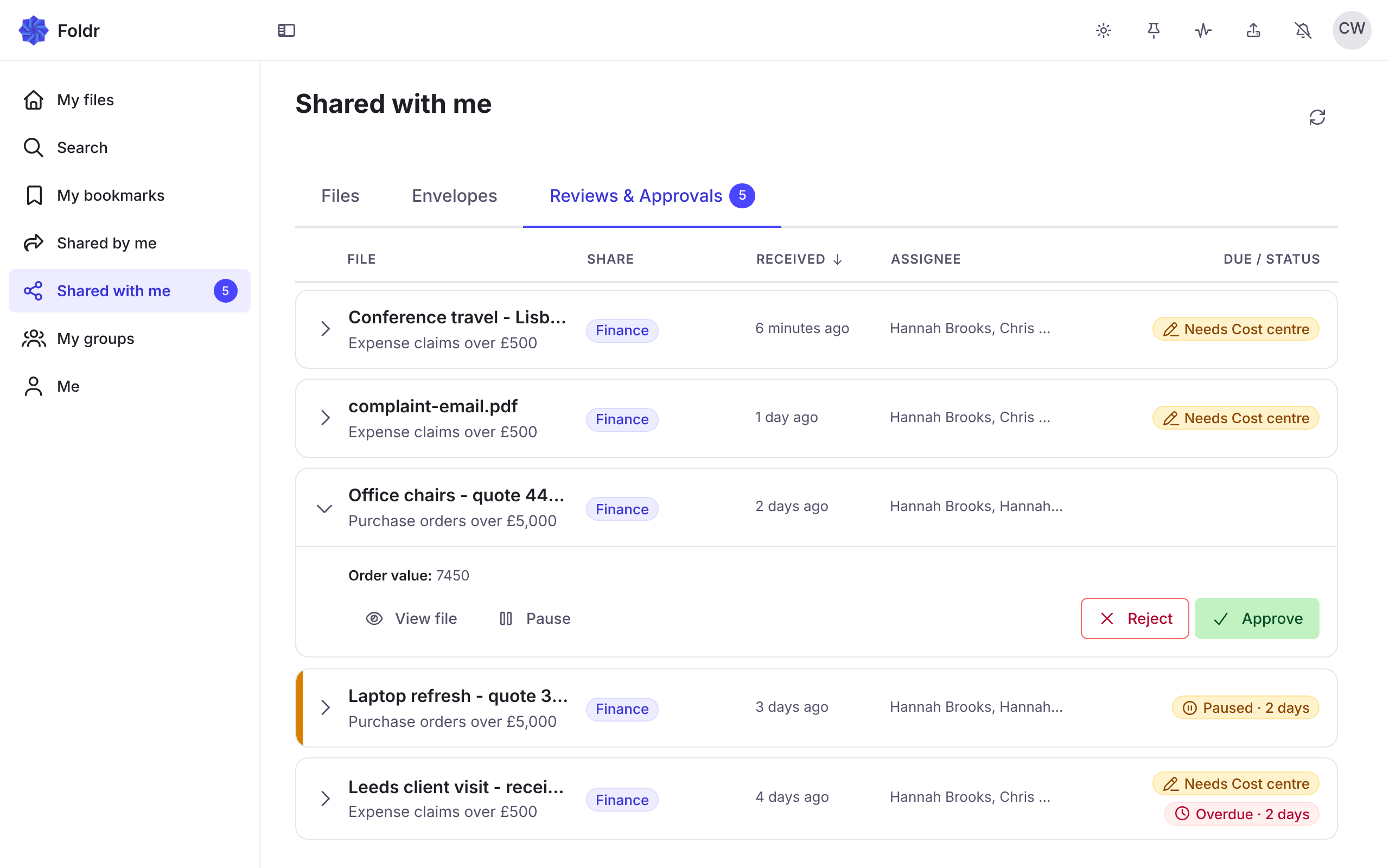
Section titled “Deciding from the list”Select a row to open it. The panel shows the request’s details, the requester’s note, and any fields to fill in. Under it:
- View file opens the file in the viewer.
- Pause or Resume.
- Escalate, when the rule has an escalation list. See Deadlines and escalation.
- Reject and Approve.
Approve and Reject stay disabled until the required decision fields have a value. See Decision fields.
When a step needs several approvers, your decision counts and the request waits for the rest. It leaves your inbox, unless you are also an approver on a later step: then Foldr says Recorded. It still needs other approvers. and it stays. When the outcome cannot be carried out, you see Approved, but it could not be carried out. The person who asked has been told.
A request that someone else decided or the requester withdrew says This request has already been decided or withdrawn.
Deciding from the file viewer
Section titled “Deciding from the file viewer”You can judge the file and decide in one place. In the row, View file opens the file. The viewer opens its details sidebar on a Decision card, on a phone too. The card holds:
- the ask, in one line,
- the requester’s note,
- the number of changes, for a saved change,
- any fields to fill in,
- Reject, Approve, Pause (or Resume) and, when it applies, Escalate.
- an Escalated line with the date, once the request has been escalated.
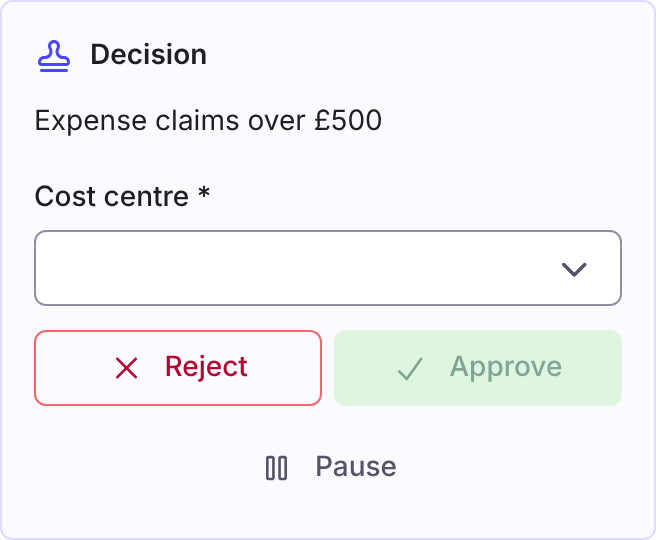
After you decide, the viewer moves to the next waiting request that has a file. It closes when there is none.
Pause a request
Section titled “Pause a request”Pause holds a request while you find something out. It stops the clock, and it tells the requester why.
- Select Pause.
- Under Why are you pausing it?, write the reason. It is required, up to 2,000 characters. The user who asked sees this.
- Select Pause.
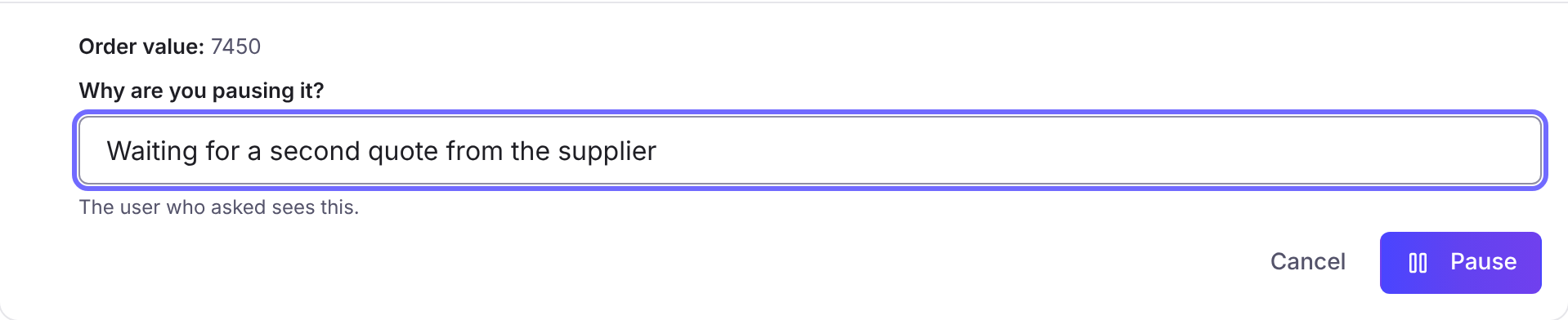
The request stays pending, so it stays in everyone’s inbox. It shows Paused by your name, your reason and how long, for example “Paused by Priya Nair · Waiting for the supplier’s quote · for 2 days”. One pause holds the whole request, every approver on a step with several included.
- A paused request does not escalate, does not send reminders and does not lapse. When the pause ends, Foldr moves its deadline out by the time it was paused. See Deadlines and escalation.
- Any approver who may decide the request can Resume it. Approving or rejecting a paused request also ends the pause.
- Foldr tells the requester by email and in Foldr when you pause. A resume tells them in Foldr.
- You cannot pause your own request. The request must be waiting for a decision, and not already paused.
- A Disclose release is signed off in its own dialog and cannot be paused.
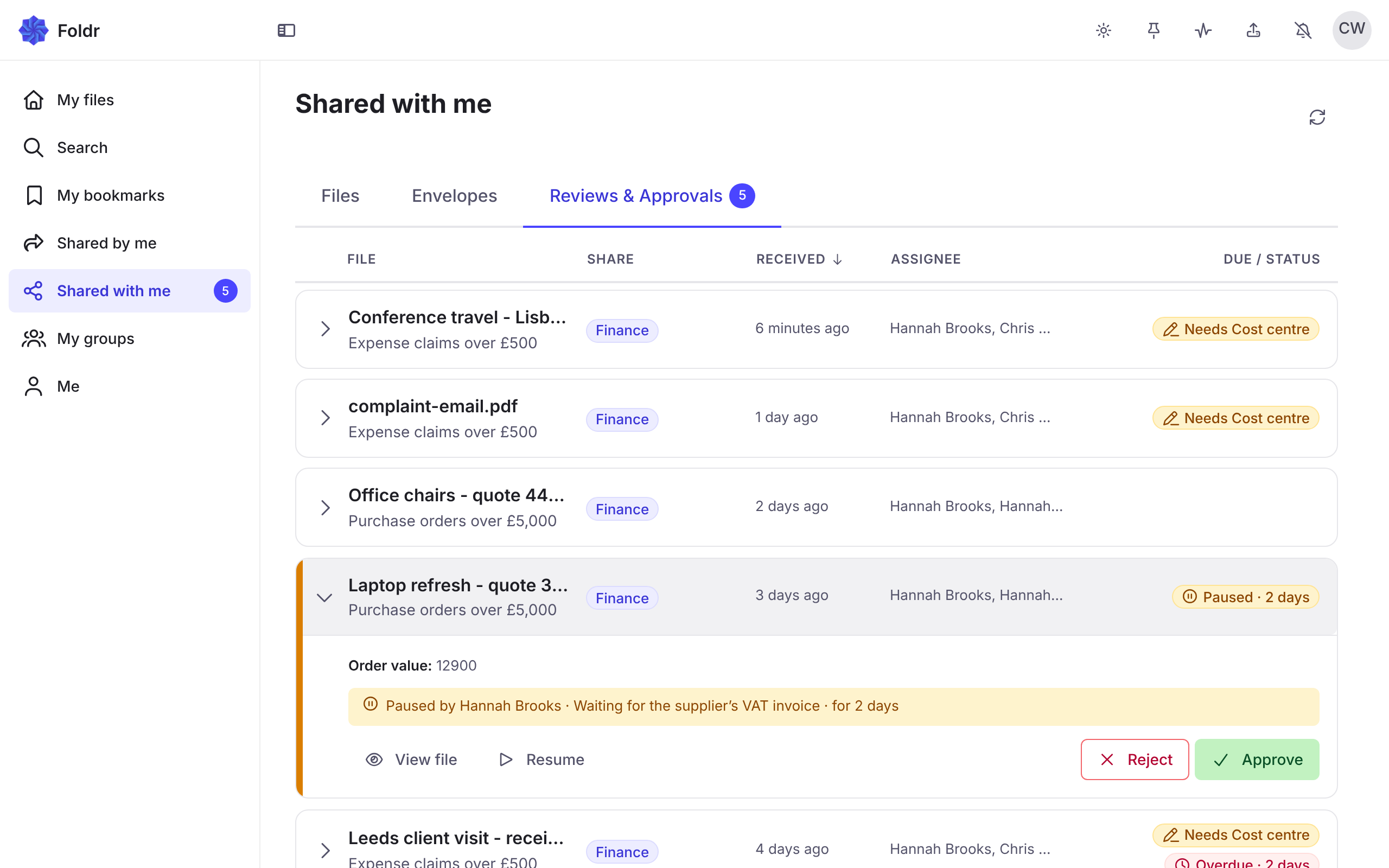
Foldr records paused and resumed in the audit trail.
The Settings inbox
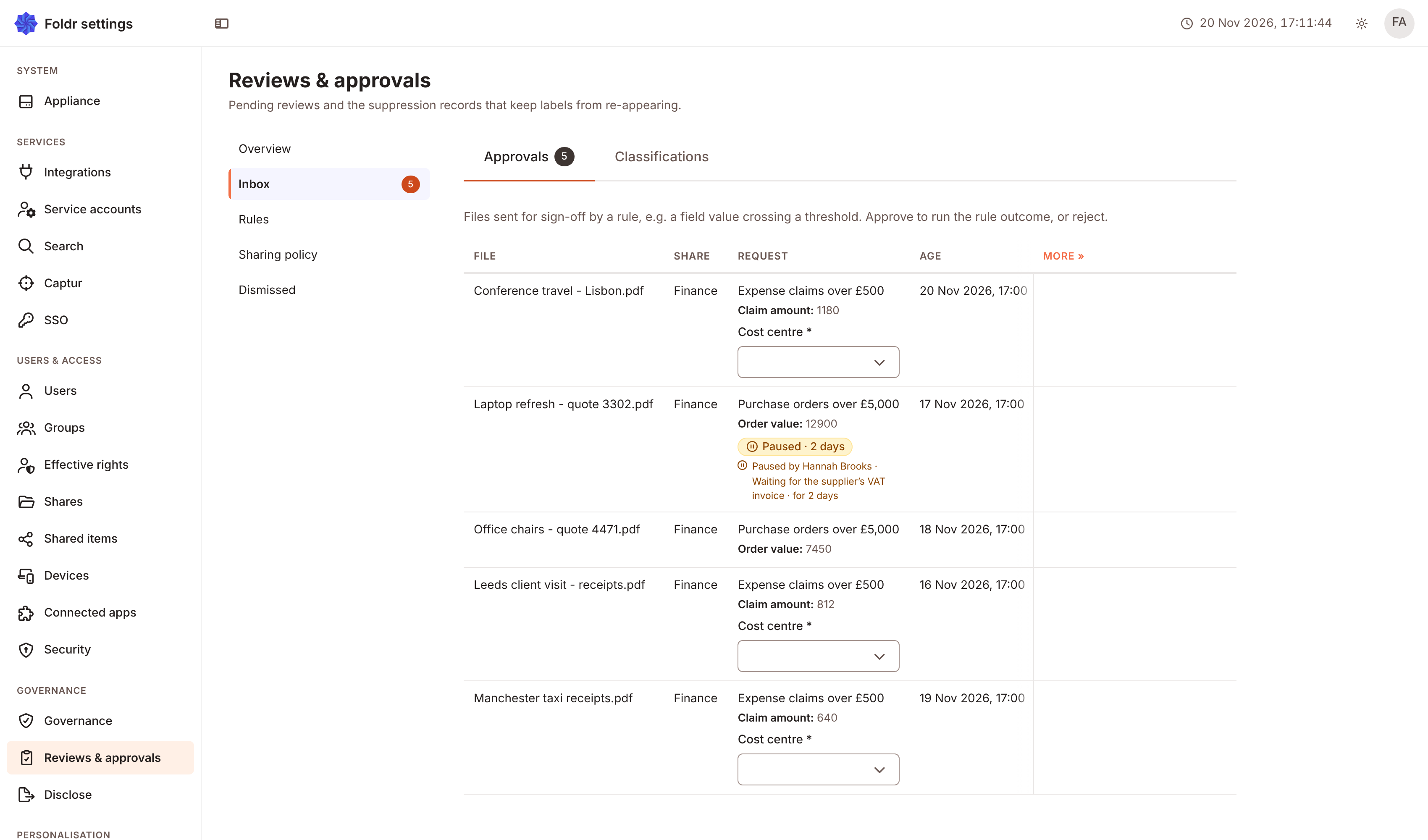
Section titled “The Settings inbox”An administrator with Configure Reviews & approvals also sees the inbox in Settings > Reviews & approvals, on the Inbox tab. It lists Approvals and Classifications. Reject and Approve are always in view. A paused request shows a Paused chip and who paused it and why. A paused request does not count as overdue in the Overview.
The Settings inbox has no Pause or Resume. If you decide a paused request there, it asks Decide a paused request? and says This request is paused by the approver and their reason, then Decide anyway? Decide only when you mean to end the pause.
The Overview tab counts Open, Overdue, Escalated, Approved (30 days), Rejected (30 days) and Avg. time to decide, with Open by type.