
Logic
Logic is a set of rules that look at the answers so far. Each rule is an expression that gives true or false, or a value. You can write the expression, or build it with the condition builder, which shows it as Field, an operator and Value.
Foldr runs every rule in the browser as the person fills in the form, and again on the server when they submit. Answers to hidden questions are dropped on the server.
The rules on a question
Section titled “The rules on a question”Open Logic & validation on a question.
| Rule | Gives | Effect |
|---|---|---|
| Show this question when | true or false | The question is hidden until it is true. |
| Required when | true or false | The question must be answered while it is true. |
| Valid when | true or false | The answer is refused unless it is true. |
| Computed value (read-only) | A value | The answer is worked out and the respondent cannot change it. |
| Default value (editable) | A value | The answer starts as this and can be changed. |
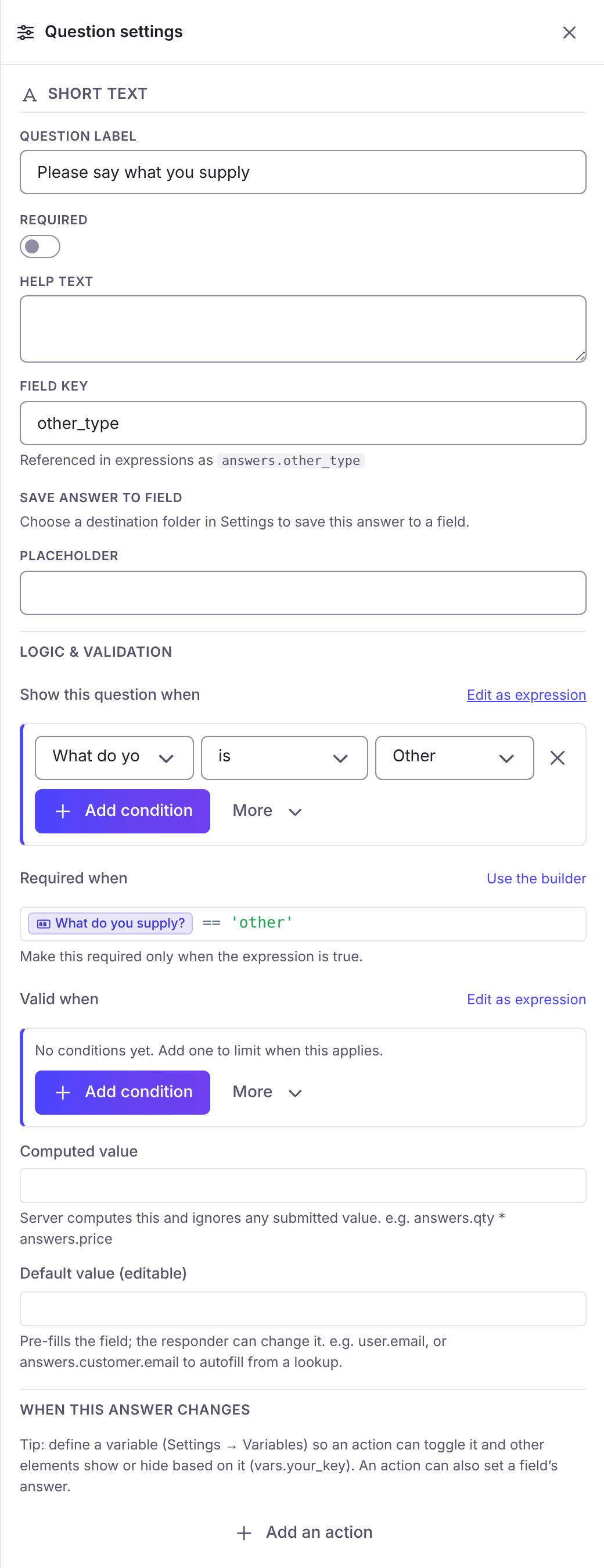
{"answers": {"source": "Other", "vat_registered": true, "vat": "GB123456789"}}Show a text box when someone picks “Other”:
answers.source == "Other"trueRequire a VAT number only for businesses that are registered:
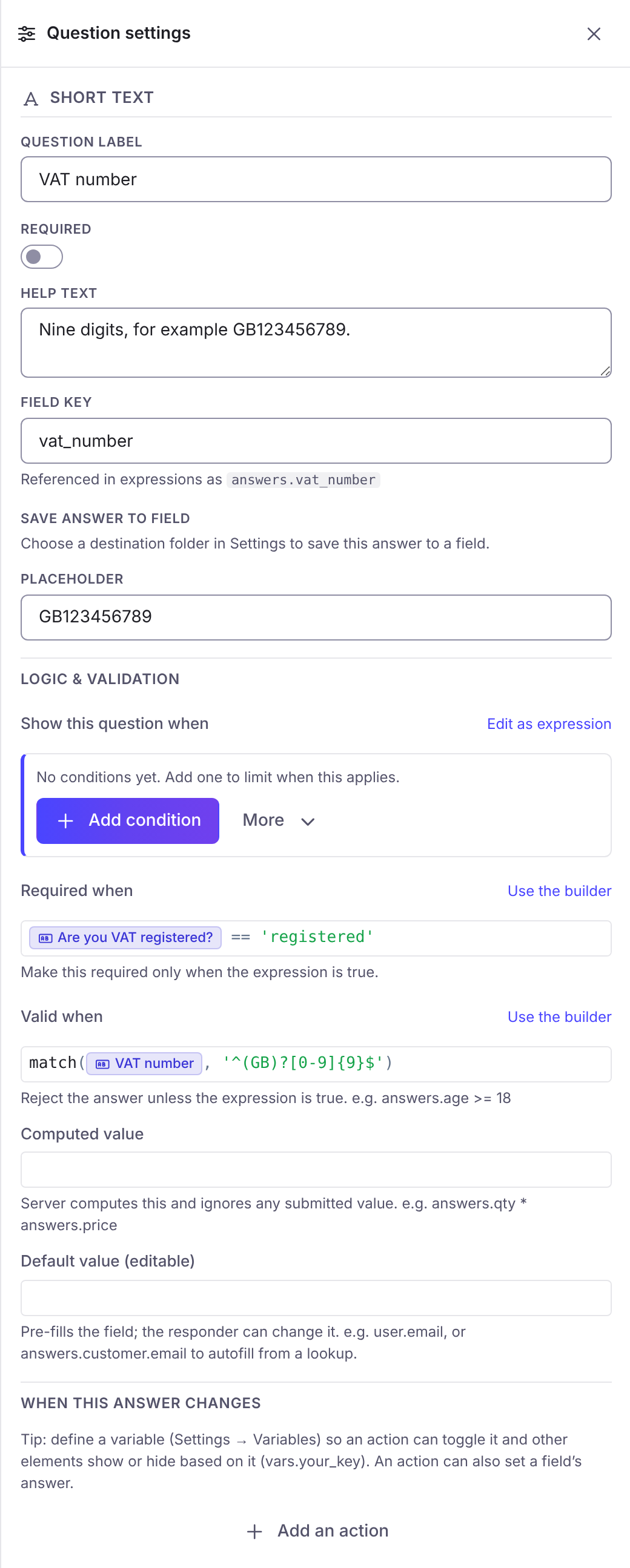
answers.vat_registered == truetrueCheck the shape of the number:
answers.vat matches /^GB[0-9]{9}$/trueThe two rules Required when and Valid when, on a VAT number question:
A Panel and Columns have a Show this panel when and a Show these columns when. Hiding one hides everything inside it.
The condition builder
Section titled “The condition builder”Add condition picks a Field, an operator and a Value. Add group combines conditions with Match all or any of the following. Edit as expression shows the written form. A condition that the builder cannot show opens as a Custom expression.
The operators depend on the type of question: is, is not, greater than, at least, less than, at most, is empty, is answered, includes, does not include, and for dates is on, is not on, is before, is after.
Adding a condition, from Add condition to the chosen value:
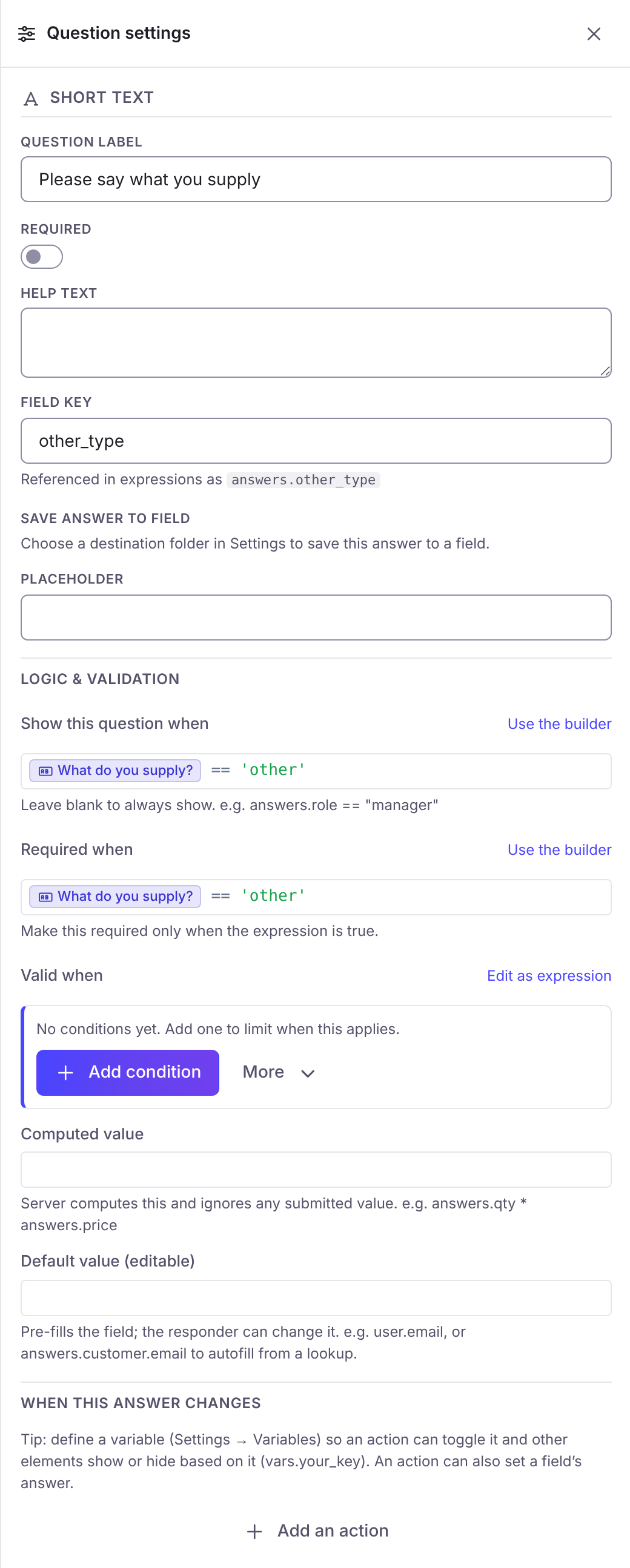
A condition shown as an expression, with a link back to the builder:
Skip logic
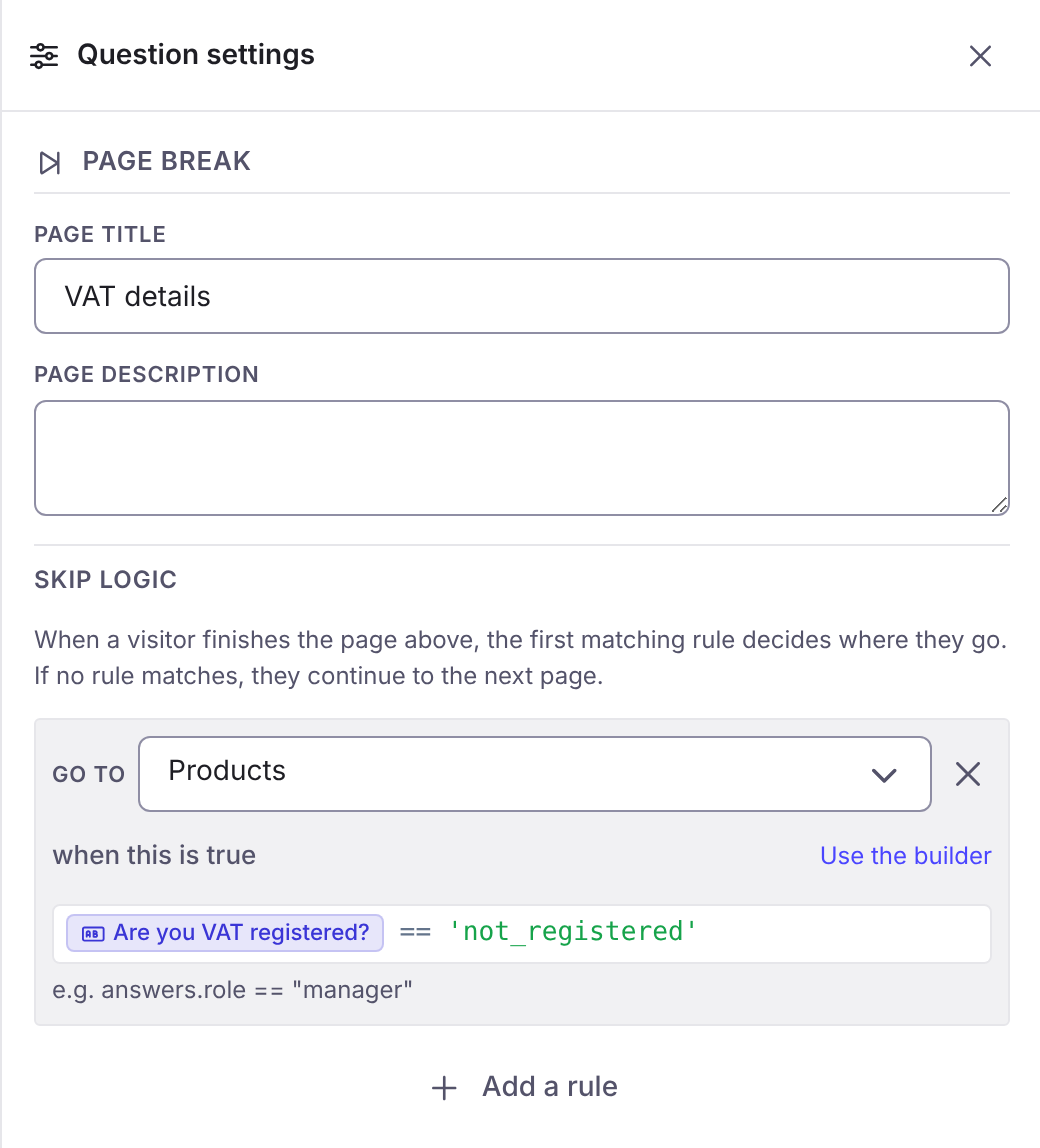
Section titled “Skip logic”A Page break has Skip logic. When a respondent finishes the page above, the first matching rule decides where they go: Go to a page, or Finish (submit the form), when this is true. If no rule matches, they continue to the next page. Turn off Show the page progress bar (in Settings > Look & options) when skipping makes a linear count misleading.
Variables
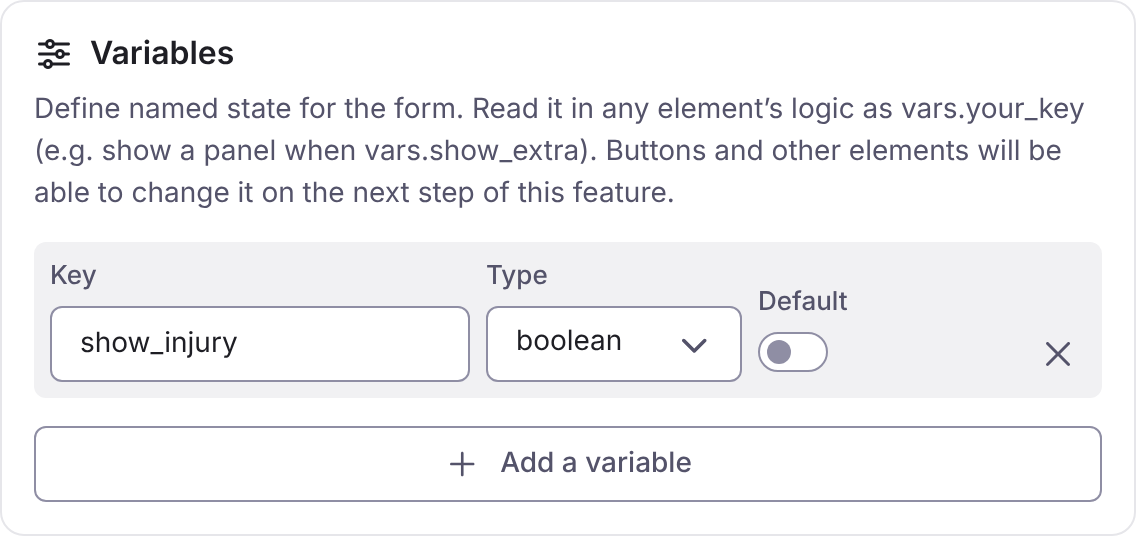
Section titled “Variables”A variable is named state for the form. In Settings > Behaviour > Variables, choose Add a variable, and give it a Key, a Type (text, number or yes/no) and a Default. Read it in any rule as vars.key.
Variables let a button, or a change in one answer, show or hide parts of the form.
{"vars": {"show_extra": true}}vars.show_extratrueA variable key must be unique, in letters, numbers and underscores, and not start with a number.
Buttons and actions
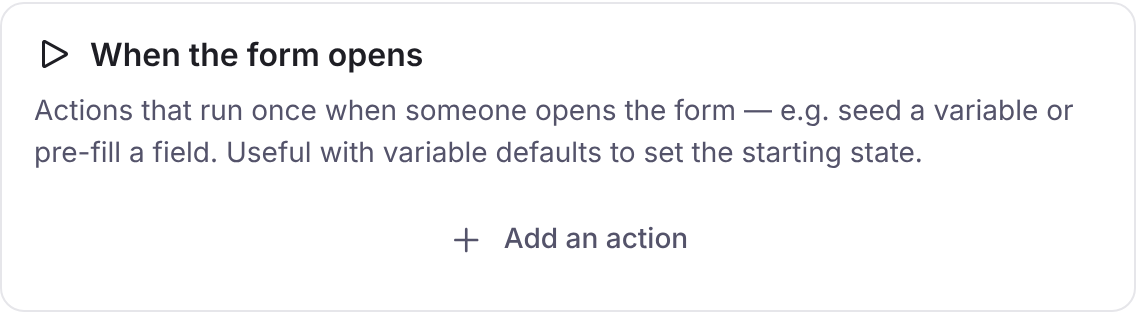
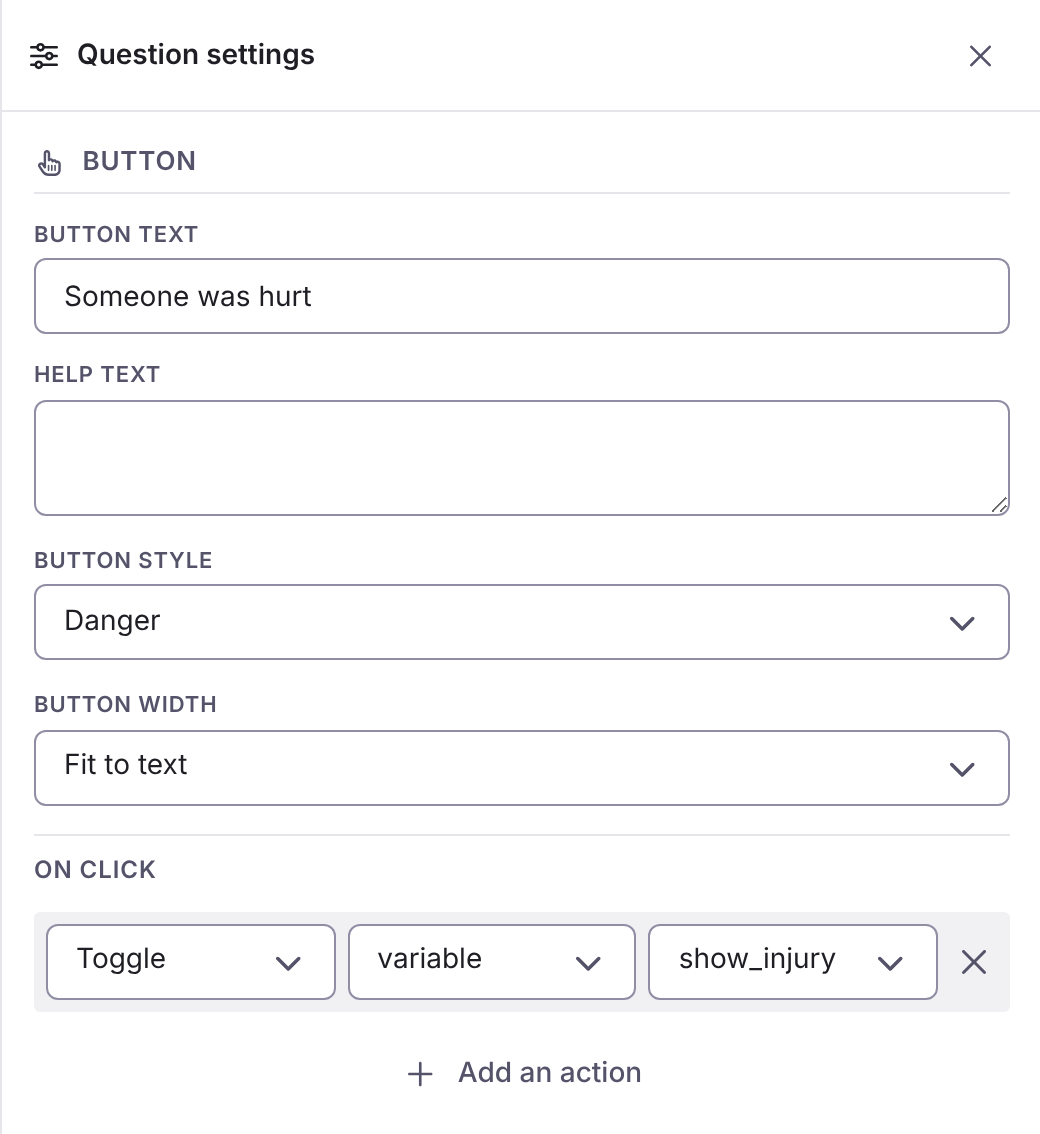
Section titled “Buttons and actions”A Button question runs its On click actions. A question can also run actions When this answer changes, and the form can run actions When the form opens.
| Action | Does |
|---|---|
| Toggle | Flips a yes/no variable or field. |
| Set | Sets a field or a variable to value or to expression. |
| Reset | Puts a field or a variable back to blank or its default. |
| Run automation | Runs an approved script and puts what it returns into fields, into variables, or both. See Data sources and lookups. |
When the form opens is for seeding a variable or pre-filling a field. It runs once, when someone opens the form.
A Button with its On click actions:
The submit button
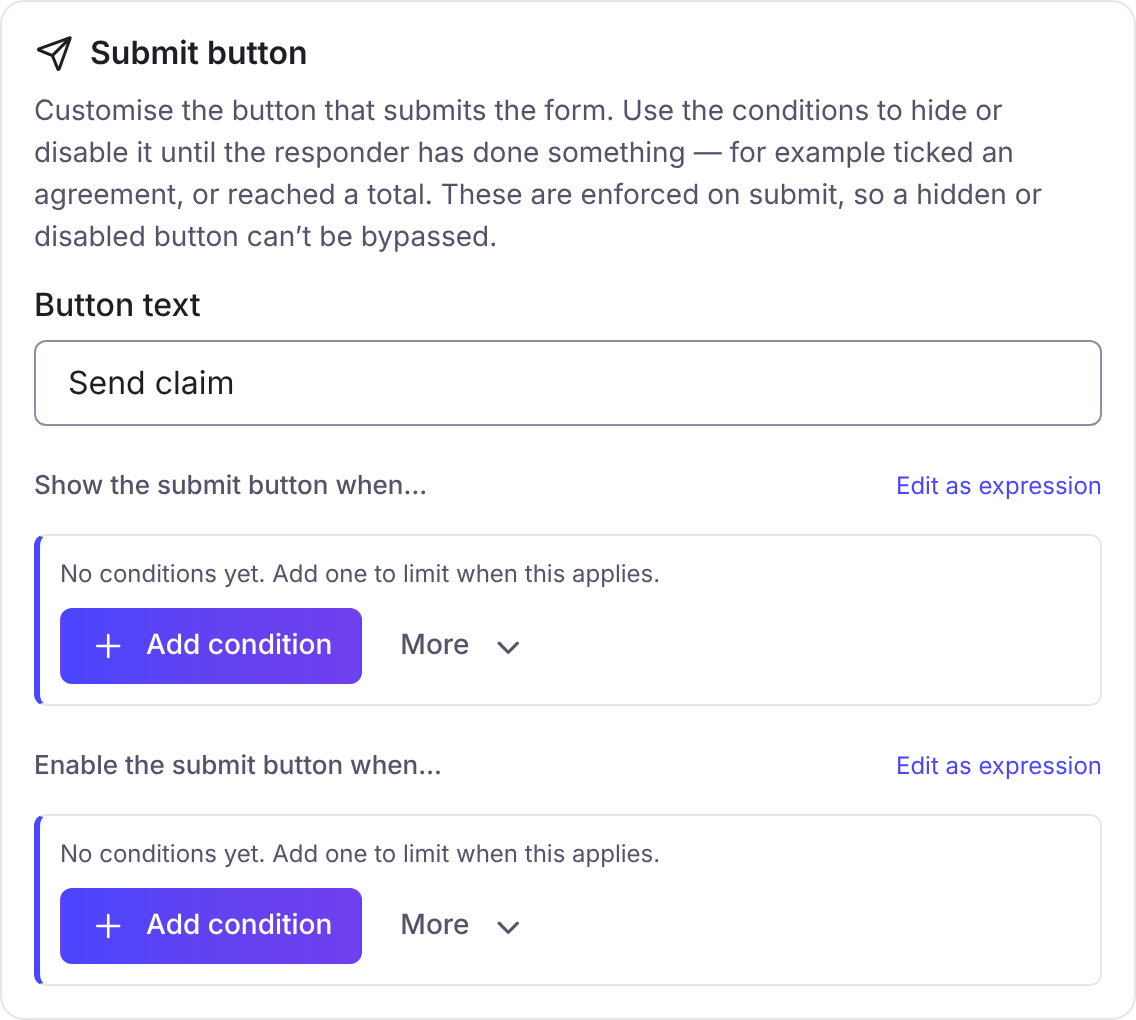
Section titled “The submit button”In Settings > Behaviour > Submit button:
| Setting | Does |
|---|---|
| Button text | The words on the button. The default is Submit. |
| Show the submit button when… | Hides the button until the expression is true. Empty means always show. Example: vars.agreed == true. |
| Enable the submit button when… | Greys the button until the expression is true. Empty means enable it once the required fields are filled. Example: answers.total > 0. |
Labels that change
Section titled “Labels that change”Text in a label, help text or Text / HTML block can include {{ answers.key }} or {{ vars.key }}. Any expression works inside the braces.