Access and deadlines
These settings are on the Access tab of the form’s Settings.
Who can fill this form
Section titled “Who can fill this form”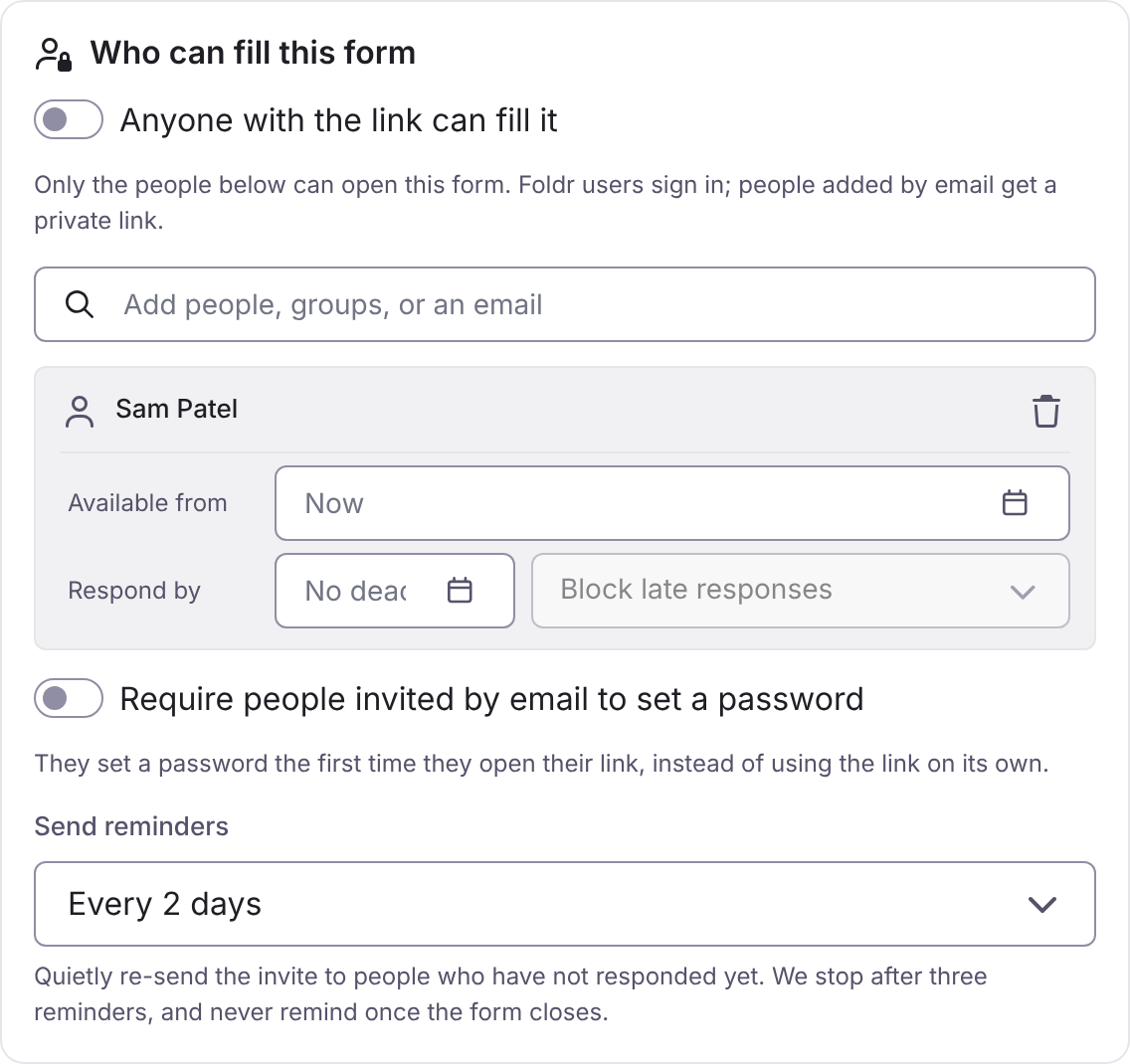
| Choice | Means |
|---|---|
| Anyone with the link can fill it | A public form. Nobody signs in. It needs the Create public forms permission. |
| Only the people below | A restricted form. Choose Add people, groups, or an email. Colleagues sign in with their Foldr account. People added by email get a private link. |
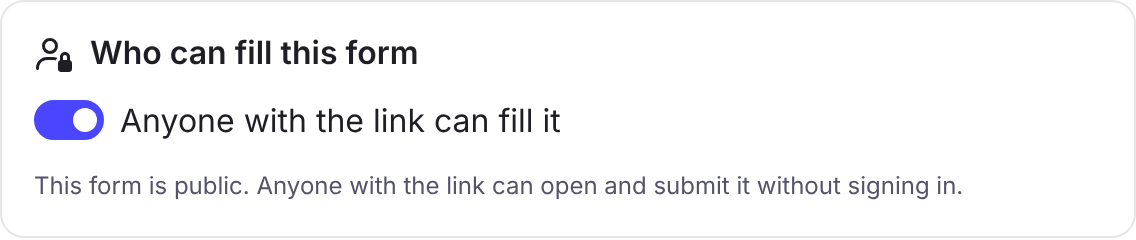
A public form protects itself with an invisible browser check and a rate limit. There is no CAPTCHA. The browser solves a small proof-of-work puzzle before it can submit, which slows automated submissions down. Uploads on a public form are limited per day. See Limits.
A restricted form shows in Shared with me, on the Forms tab, for the people named, with a badge while it is waiting for them:
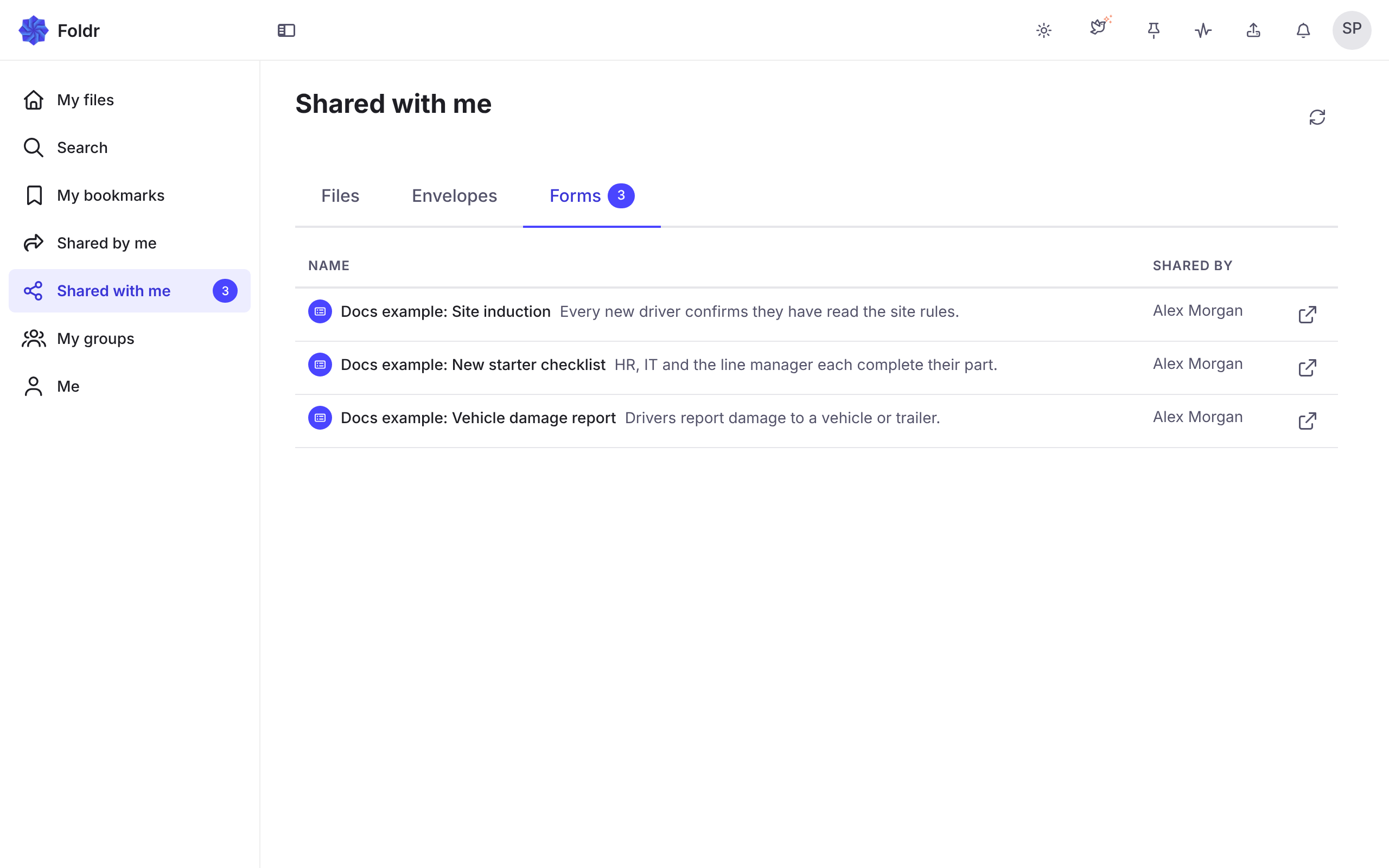
Groups count, including nested groups. People and groups are named by the builder, and the recipients can open the form only after you publish it.
People outside the organisation
Section titled “People outside the organisation”Adding someone by email needs the Invite external recipients to forms permission. Foldr creates an external account and emails a private link that signs them in. Require people invited by email to set a password makes them choose a password the first time they open the link. Outside people can only sign in when an administrator has allowed it in Settings > Security, and the builder shows a warning until then. An outside person also needs to be allowed to use Foldr, which normally comes from the Foldr External Users group.
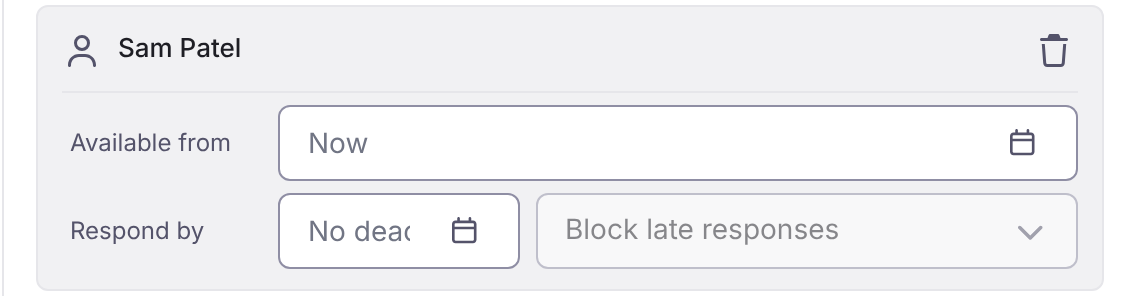
Deadlines for each person
Section titled “Deadlines for each person”Each recipient can have Available from and Respond by. After the deadline chooses what happens:
| Choice | Means |
|---|---|
| Reminder only | The person can still respond. |
| Block late responses | The person can no longer respond. |
| Close to them after | The form closes to them a set time after the deadline. |
Reminders
Section titled “Reminders”Send reminders sends the invitation again to people who have not responded: Off, Every day, Every 2 days, Every 3 days or Every week. Foldr stops after three reminders, stops when the person responds or the form closes, and never makes the first contact.
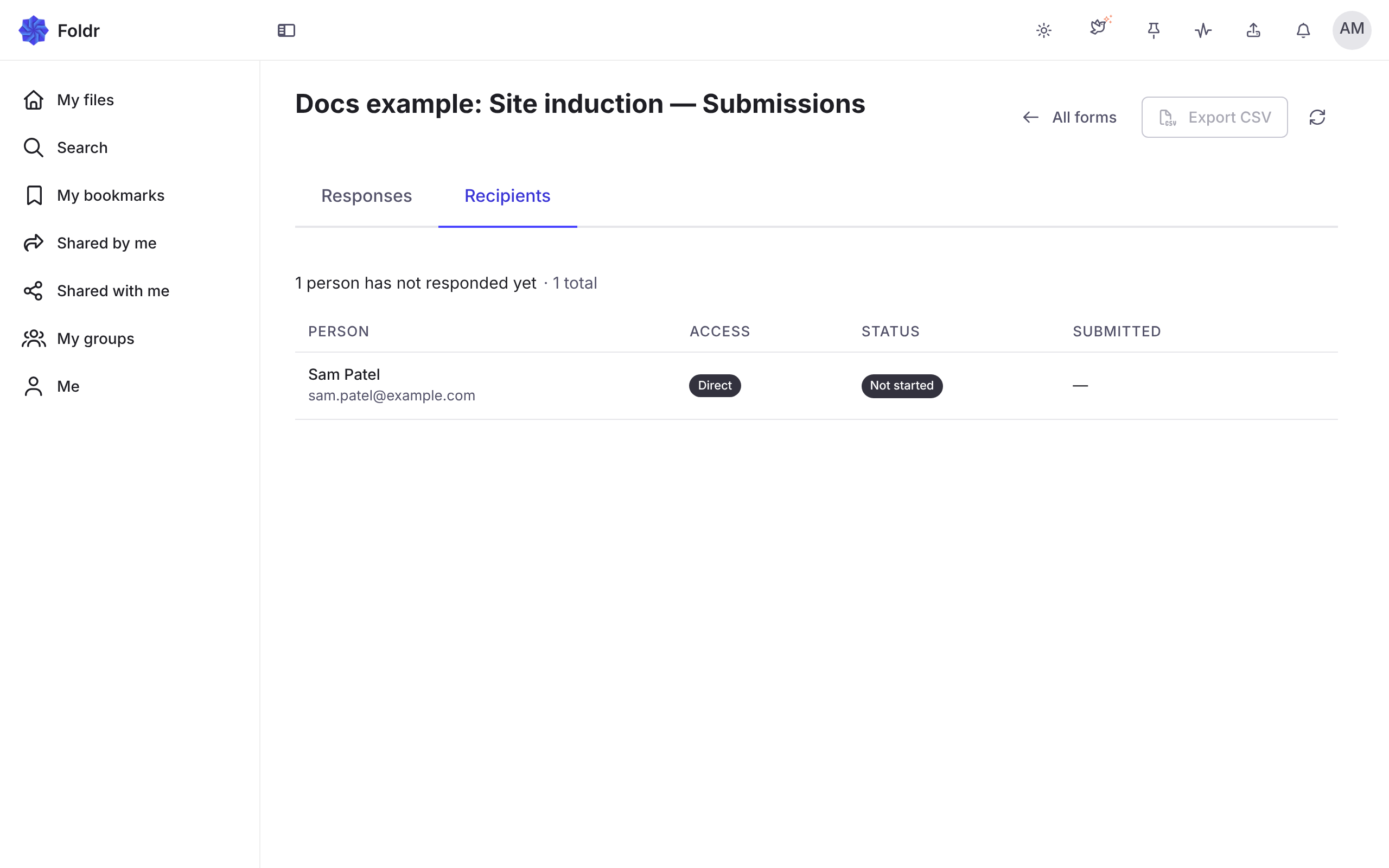
On the Recipients tab, Remind sends a reminder now and Revoke cancels a person’s invitation, so their link stops working. Opened, not submitted and Not started show where each person is.
Schedule and limits
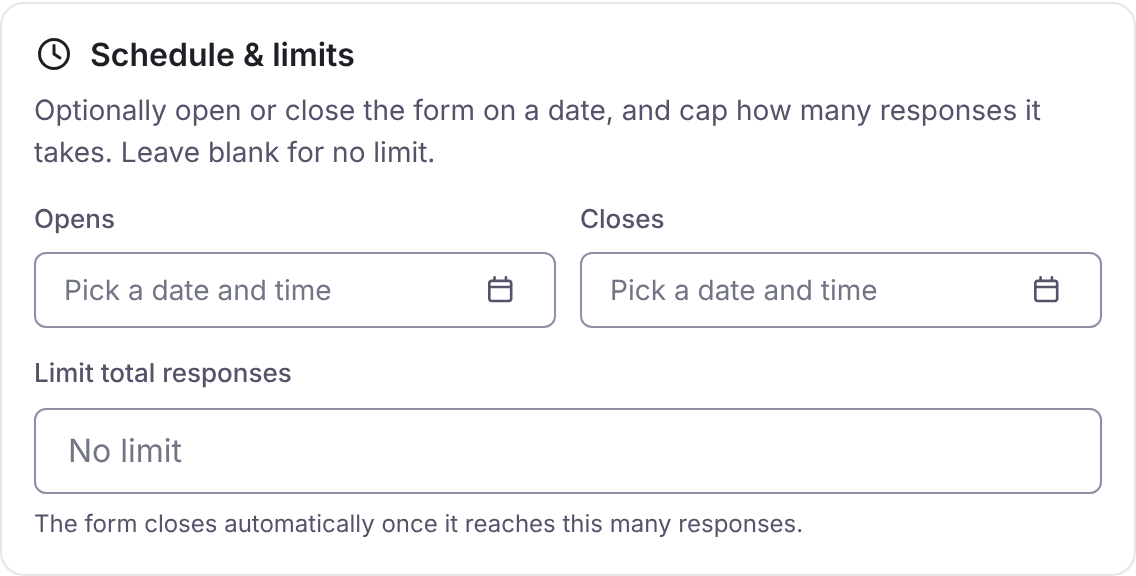
Section titled “Schedule and limits”| Setting | Does |
|---|---|
| Opens, Closes | Open or close the form on a date and time. |
| Limit total responses | Closes the form once it has this many responses. The count is exact. |
| Let people edit their response after submitting | Off means each person responds once. On lets them reopen their link and submit again. |
When a form cannot be filled, the person sees why: This form is not open yet., This form is closed., This form has reached its response limit., The deadline for this form has passed. or You have already responded to this form.
Form link
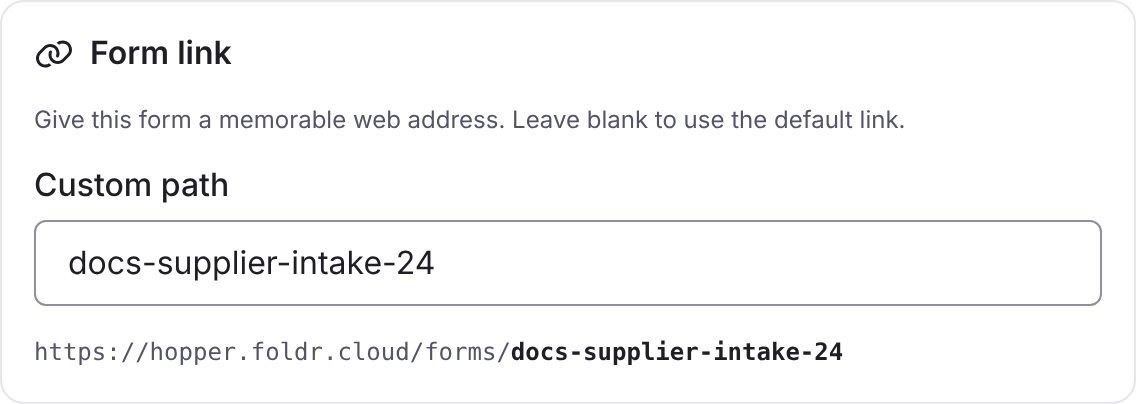
Section titled “Form link”Form link has a Custom path, so a form can live at /forms/staff-survey instead of a long address.
Save and finish later
Section titled “Save and finish later”Let respondents save and finish later adds Save & finish later and a private resume link. The saved response is kept for 30 days after its last save. For a signed-in respondent only that person can resume it. On a public form the link is the key, so the respondent is told to keep it private. It is in Look & options.
Progress bar and width
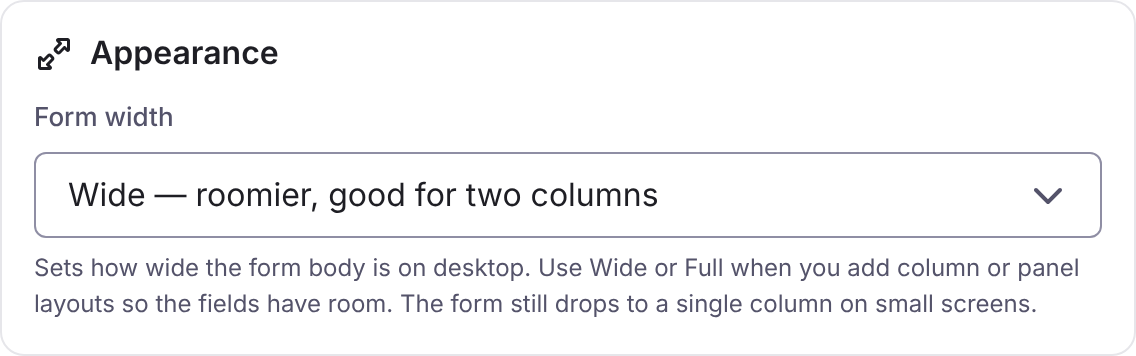
Section titled “Progress bar and width”Show the page progress bar shows “Page N of M” on a multi-page form. Form width is Standard, Wide or Full. Both are in Look & options.