Outputs
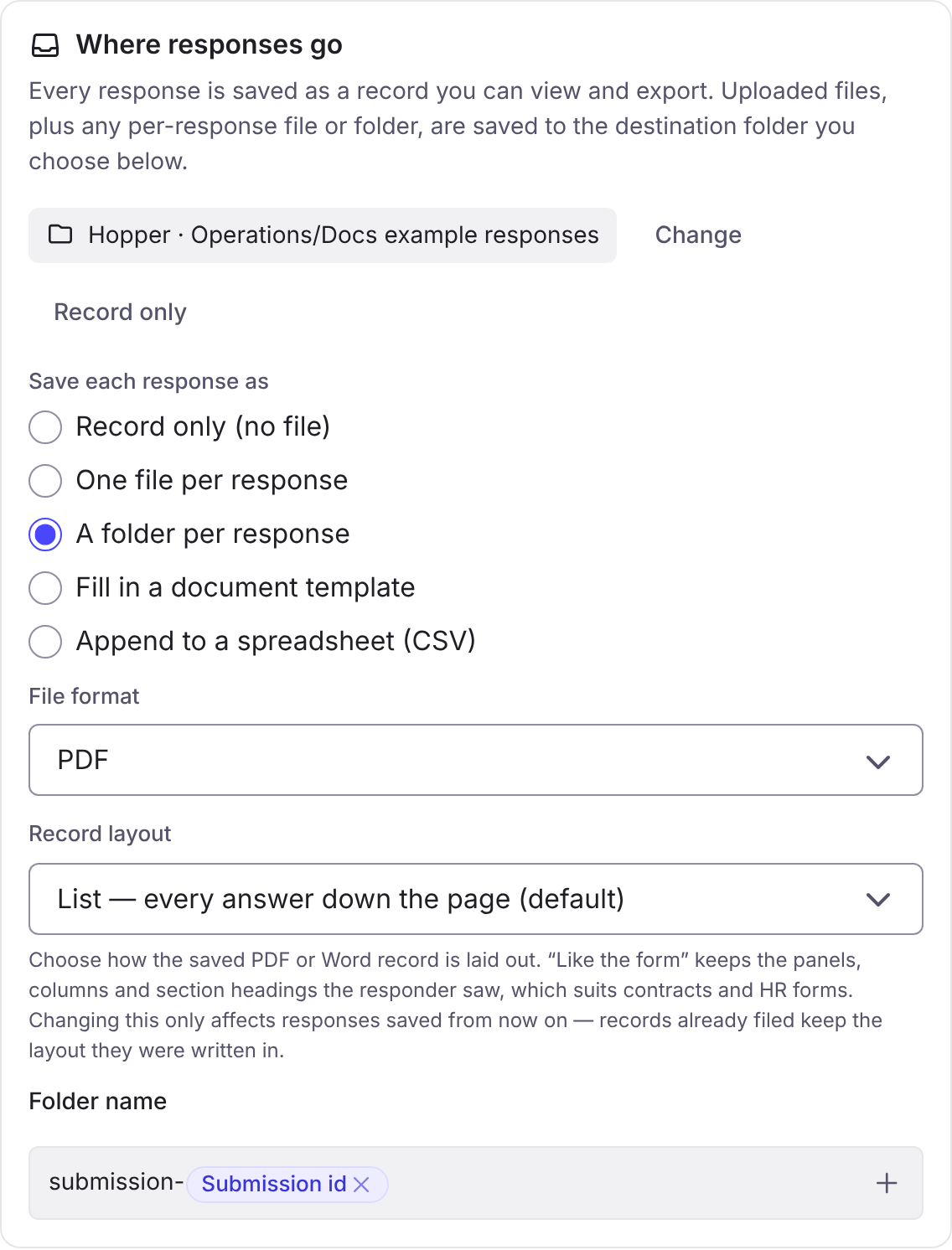
Every response is saved as a record that you can view and export. In Settings > Responses, Where responses go chooses what else is made, and Destination chooses the folder.
| Choice | Makes |
|---|---|
| Record only (no file) | Nothing more than the record. |
| One file per response | A file in the destination folder. |
| A folder per response | A folder in the destination folder, holding the record and the uploaded files. |
| Append to a spreadsheet (CSV) | One row per response in a CSV, with a column per question, under Spreadsheet file name. |
| Fill in a document template | A copy of your own Word, OpenDocument or PDF file with the answers written in. |
Uploaded files go to the destination folder. A form with a File upload question and no destination refuses every upload, and the builder warns about it.
If the destination is on a share that checks permissions on its own server, such as an SMB share, the person’s own access to it decides what can be written.
File format and layout
Section titled “File format and layout”File format is PDF, Word, JSON, Text or Markdown. Record layout is List — every answer down the page (default) or Like the form — keep panels, columns and headings. The second suits contracts and HR forms.
File and folder names
Section titled “File and folder names”File name and Folder name take these tokens. The default is submission-%submission%.
| Token | Is |
|---|---|
%form% | The form name. |
%submission% | The submission’s id. |
%email% | The submitter’s email. For an anonymous respondent, the answer to Submitter email question, or anonymous. |
%date%, %time%, %datetime% | When it was submitted. |
%y%, %m%, %d% | Year, month and day. |
Submitter email question (in Where responses go) names the question that asks a respondent for their email. It feeds %email% and the copy to anonymous respondents.
Document templates
Section titled “Document templates”Fill in a document template writes each response into a copy of your own file. The template is a Word (.docx) or OpenDocument (.odt) file with markers such as {{marker}} where answers go, or a PDF with named boxes drawn on it.
In the Slots panel, each marker is connected to a question, or Match by name does it for you. Slots with no question are left empty. The panel also shows:
- Print the answer for a text slot, Date format for a date, and Tick when for a Word checkbox. A Word checkbox needs a Tag (in Word, Developer > Properties); untagged ones stay as they are.
- Repeating rows: One row for each entry in a table question. A document holds at most 200 rows from a table. A response with more is refused and no document is made.
- Signatures: Mark this place for a signature, used by Signing.
- Problems in the template: markers that are malformed, mapped slots no longer in the file, and markers inside a link that cannot be filled.
A PDF cannot grow, so it cannot take a repeating table, and it has no places for signatures. Use the Word original when you need either. Choosing a file that lacks something you mapped lists what will be removed first.
The form remembers the copy of the template it was published with. If someone edits the template afterwards, the form says so, and the response’s trail shows Template changed since publishing.
Filling a Word or OpenDocument template runs in Foldr’s document converter, on Foldr Cloud and on an appliance alike.
Save answers to custom fields
Section titled “Save answers to custom fields”Save answer to field on a question writes the answer to a custom field on the file made for each response, so it can be searched and filtered. The field must have Let forms save an answer to this field switched on, in Settings, under the share. The list shows only the fields whose type matches the question. A Hidden value can be saved this way too.
Each question type can fill these field types:
| Field type | Questions that can fill it |
|---|---|
| Text | Short text, Paragraph, Email, Phone, Web address, Time, Date and time, Choice, Lookup, Hidden value |
| Number | Number, Rating, Slider, Hidden value |
| Date | Date, Date and time, Hidden value |
| Yes/No | Yes / No, Consent, Choice, Hidden value |
| User or group | Person, Lookup |
| Signature | Signature. The drawing is stored the way the field’s own signature pad stores it. |
| Location | Short text, Paragraph, Hidden value. A typed address, postcode or lat,lon is placed as if someone had typed it into the field. |
File upload and Choose a file in Foldr cannot be saved to a field. There is no Choice field type: a choice field is a Text field with allowed values set on the share.
The share’s rules still apply
Section titled “The share’s rules still apply”A field’s allowed values and its validation rule, set on the destination share, hold for a form too. If an answer is outside the allowed values, or breaks the validation rule, Foldr does not write it to the field. The response is still saved and everything else on it still happens. Foldr records the refusal; the response’s trail in the Responses tab does not show it. To avoid it, make the question’s options match the field’s allowed values, or let the question take them from the field (see Question types).
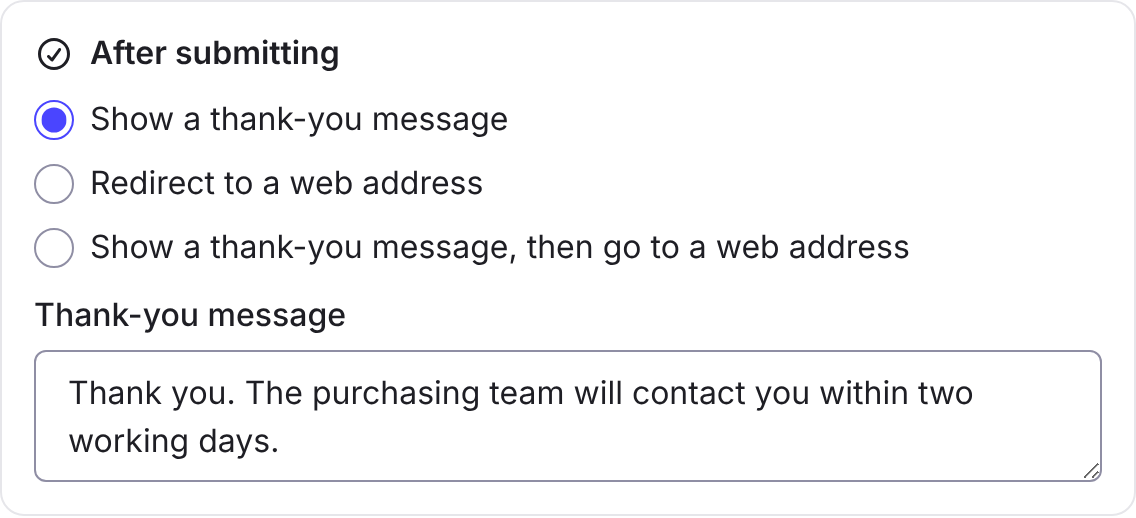
After submitting
Section titled “After submitting”In Settings > Responses > After submitting, choose Show a thank-you message, Redirect to a web address, or Show a thank-you message, then go to a web address. An address must start with https:// or be a path on this site starting with /, and the respondent sees the message instead of anything else. Use the form’s own address to let people fill it in again.