
Building a form
Forms are built under Shared by me on the Forms tab. The tab shows for anyone with the Create forms permission. Choose New form, then start blank or choose Start from a blueprint.
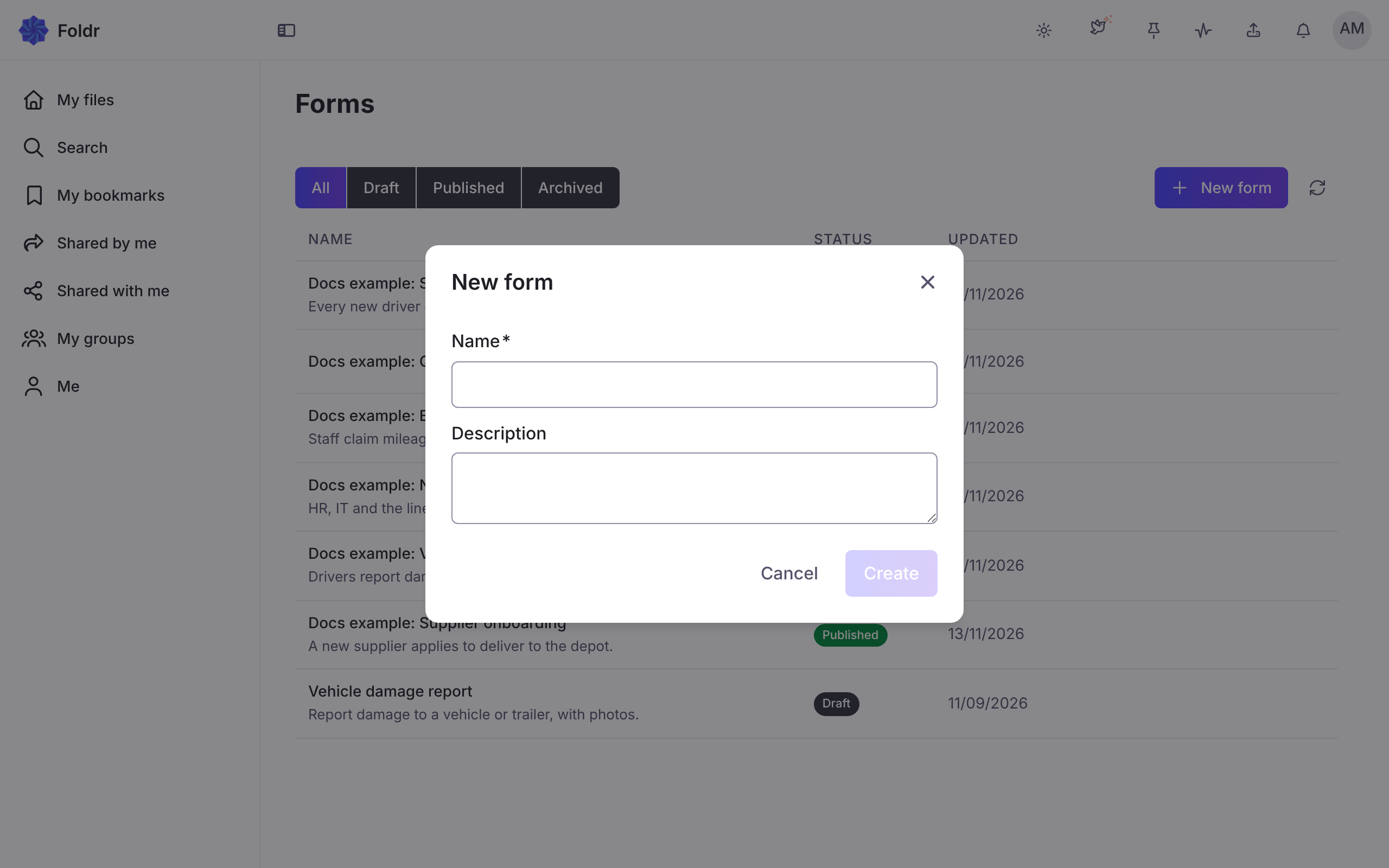
The blueprints are Contact us, Vendor intake, Lead capture and Document request. Everything in a blueprint can be changed.
The builder
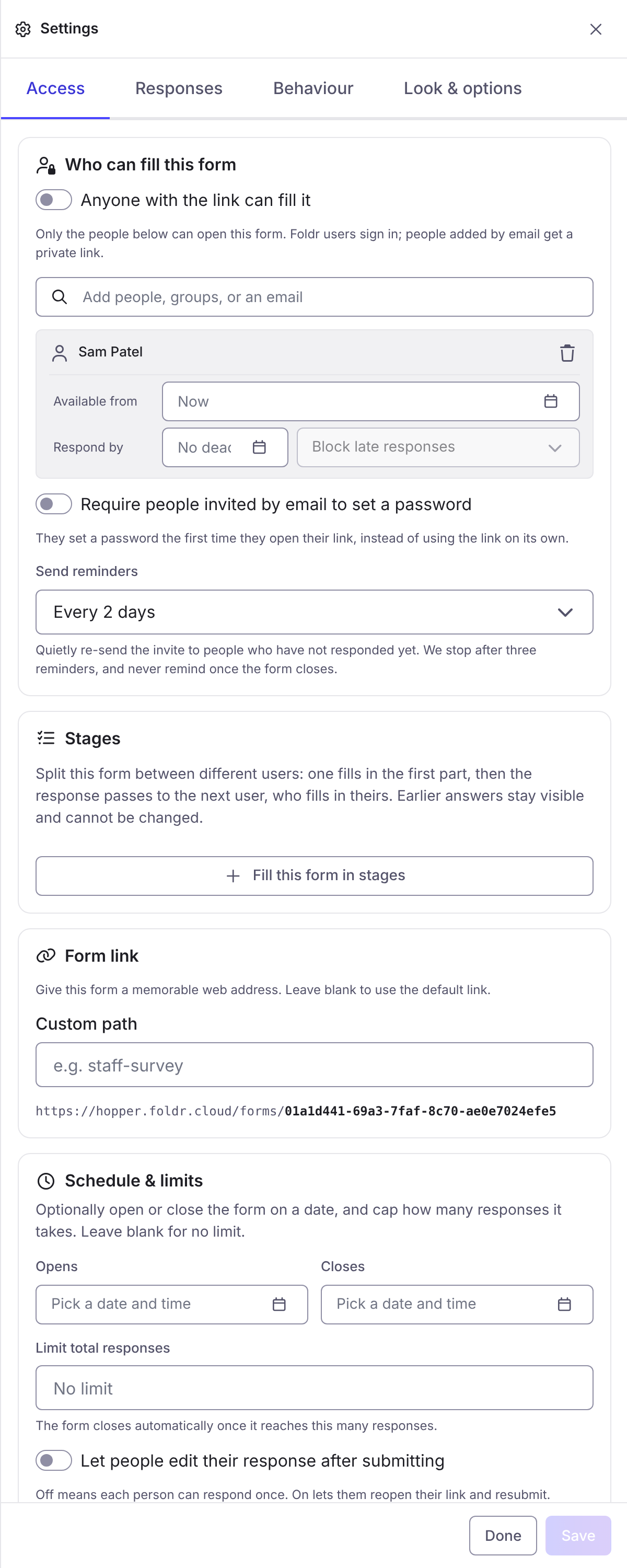
Section titled “The builder”The header has Build and Preview. On a wide window they sit side by side. Settings opens a panel with four tabs: Access (who can fill it, Stages, the link, schedule), Responses (where responses go, On submit, approval, After submitting), Behaviour (variables, When the form opens, the submit button) and Look & options (width, Languages, save and finish later). A tab shows a warning badge when something in it will stop the form working, for example an approval with no destination folder.
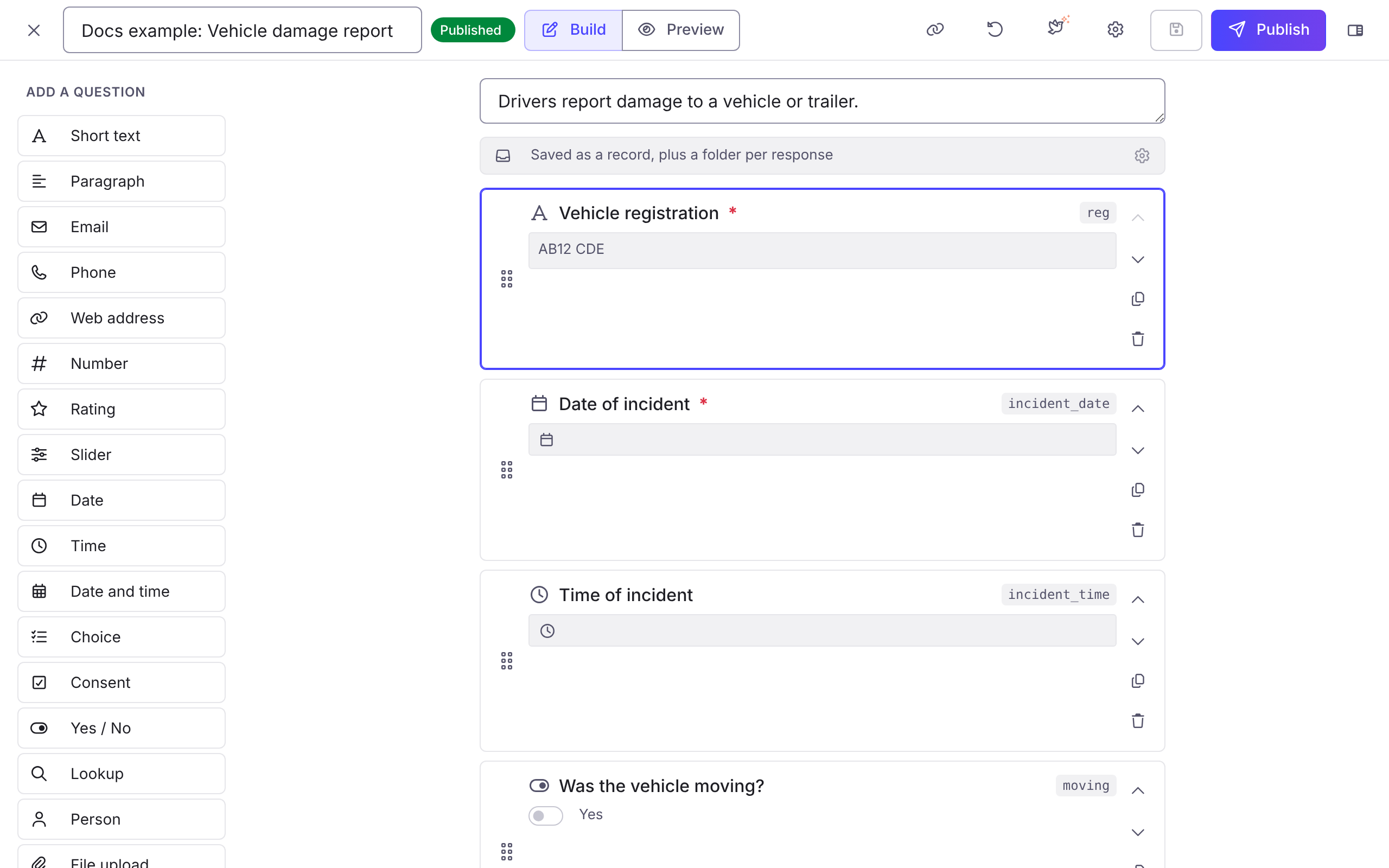
- Add a question lists the question types. Choose one to put it on the canvas. Select a question to edit it in the side panel:
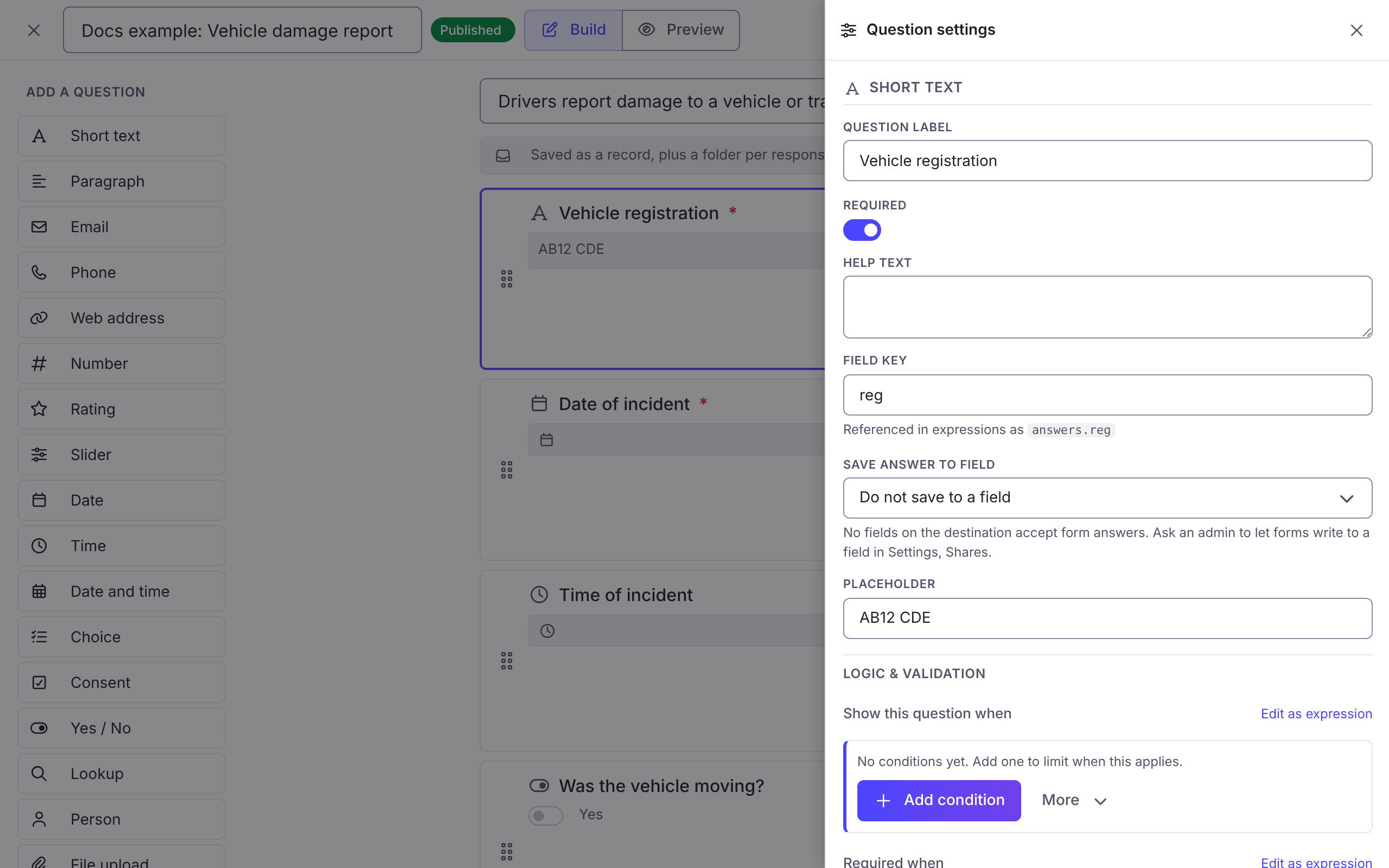
- Select a question to edit it in the side panel. Drag to reorder, or use Move up and Move down.
- Preview runs the form with the real logic. Reset answers clears it. Submit is inactive in the preview.
- A type that cannot go in the chosen place shows Can’t go in this slot. See Layout.
Settings every question has
Section titled “Settings every question has”| Setting | What it does |
|---|---|
| Question label | The question the respondent reads. |
| Help text | A line under the question. |
| Placeholder | Grey text in an empty box, on the types that have one. |
| Required | The respondent must answer. |
| Field key | The name the answer is stored under, used as answers.<key> in expressions. Letters, numbers and underscores, not starting with a number. A key already in use blocks saving. |
| Save answer to field | Writes the answer to a custom field on the file made for each response. See Outputs. |
| Logic & validation | Show this question when, Required when, Valid when. See Logic. |
Labels, help text and rich text can show live answers: write {{ answers.field_key }} or {{ vars.name }} in the text. Any expression works inside the braces.
Draft, publish and unpublish
Section titled “Draft, publish and unpublish”A new form is a Draft. Choose Publish to put it live. Publishing checks every expression, and refuses a form that will not compile, a repeated field key, a stage problem or an upload question with no destination folder. Changes to the form and to its on-submit actions apply to new responses after you publish again.
Unpublish moves the form back to draft. It goes offline and people with the link cannot fill it in. Responses already collected are kept. Archive hides a form you are finished with.
The status of a form is Draft, Published, Scheduled, Closed, Completed or Archived.
Each response remembers its version
Section titled “Each response remembers its version”A response is kept with the version of the form it was filled in against. Editing and publishing a form does not change how an old response reads.
Start a form with Grace
Section titled “Start a form with Grace”Grace can draft a form, or edit one, from a description. She only ever makes a private draft. You publish it.